Customer Notes (V8)
Customer notes allow dealers to add notes to a specific customer and manage them in one place. By adding a note to a customer, you can automatically add this on all their related workorders. Customer Notes work the same way as car notes and WO notes.
Accessing Customer Notes
The customer note can be added from the Appointment Details page, the Car Details page, and the Customer page.
Open a WO and click on the customer’s name (Driver, Owner, or Contractor) displayed in the WO.
The Customer modal will open. Above the Appointments / Cars table, click the plus button to add a note.
A separate Customer Note modal will open.
This modal works the same way as the Car Note modal on the Car Details page.
Customer Note Options
Each Customer Note includes the following options:
- Visible to mechanic: When enabled, the note is visible to mechanics on the tablet.
- Visible on WO: When enabled, the note will automatically appear in the Notes section of current and future workorder linked to that customer. This removes the need to manually add the same note to each individual WO.
- Attachments: Files can be added to the note (same attachment behavior as Car Notes).
Creating a Customer Note
After all the info is added, click Save to create the note.
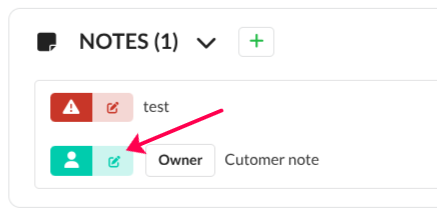
If visible on WO is enabled, the note will appear under all the other notes in the appointment detailpage.
Edit Notes
Existing notes can be edited at any time by clicking on the pen icon for this note.
Delete Notes
Notes can be permanently removed by clicking on the Delete button.
Customer types and separate notes
A Work Order may include multiple customer types:
- Driver
- Owner
- Contractor
Each customer type is handled independently. Clicking on a specific customer name opens notes for that specific customer.
Notes added to one customer type do not affect the others. This allows separate notes for Driver, Owner, and Contractor when all are present on the same WO.